Getting started with Plexo Dates
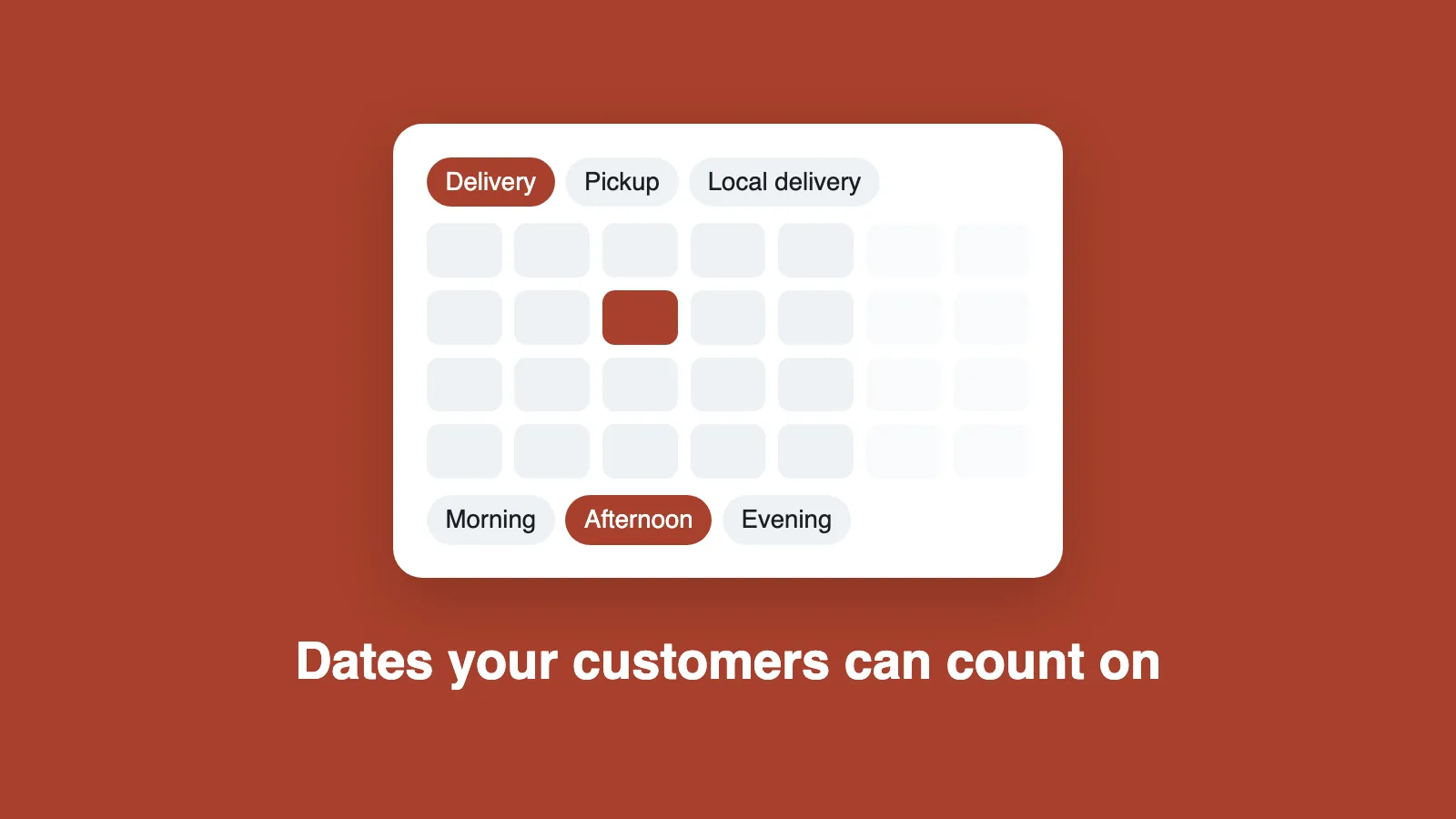
Plexo Dates lets customers choose a delivery date, dispatch day, store pickup or local delivery slot in the cart. It works out which dates are possible from your cut-off times, lead times, working days, public holidays and transit times, and keeps each day within the limits you set.
The app's start page walks you through four steps.
1. Add a location
Open Locations and select Add location, or Sync from Shopify to bring in your Shopify locations. A location is a warehouse or pickup point with its Time zone and public holiday calendars. See Locations and holidays.
2. Set a schedule rule
Open Schedule rules, pick the location and the method, and set working days, cut-off time, lead time and, if you like, time slots with limits. Preview dates shows the next dates a customer would see. See Schedule rules.
3. Add the date picker to your theme
- Cart page and product pages: add the Delivery date picker block in the theme editor.
- Cart drawers: turn on the Date picker in cart drawer app embed.
Widget in the app shows when your store has loaded the picker. See Date picker.
4. Receive your first order with a date
Place a test order with a date. The date appears on the order in your admin, on the order status page and in Orders by date. See Orders and dispatch.
Updated 2026-11-23