Withdrawal requests
Every request sent through the form lands in Withdrawal the moment it arrives, with its time of receipt. Nothing is ever refused automatically: the app records the request and you decide how to handle it.
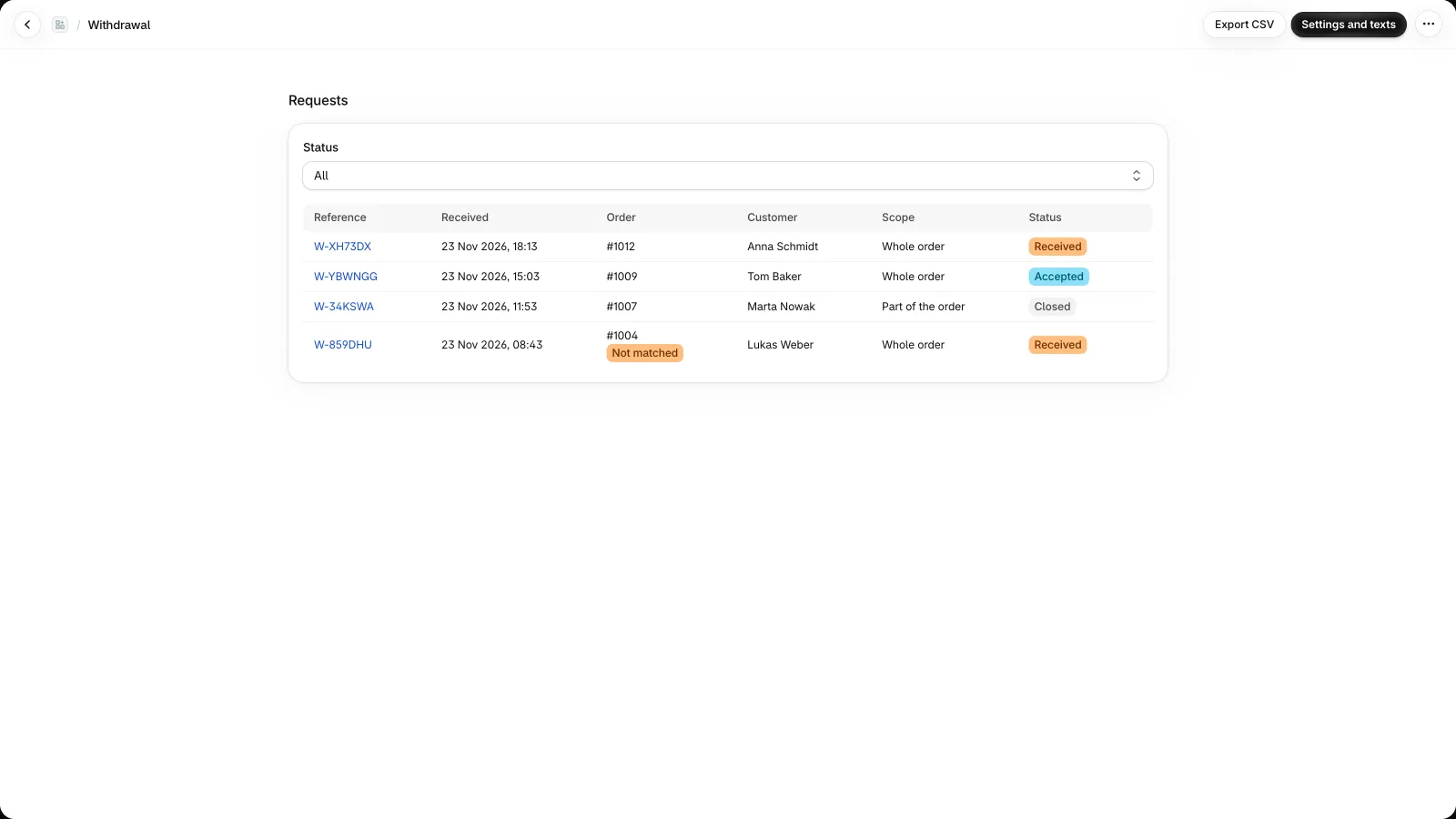
The request log
The log lists each request with its Reference, Received time, Order, Customer, Scope (whole order or part of the order) and Status. Filter by status with the Status menu.
- Not matched next to the order number means the number and email did not match an order. The request is still valid for the customer; check it by hand.
- Late means the request arrived after the withdrawal period you set. It is recorded with its time of receipt; the law counts a declaration sent before the deadline as in time.
A request page
Open a reference to see the request.
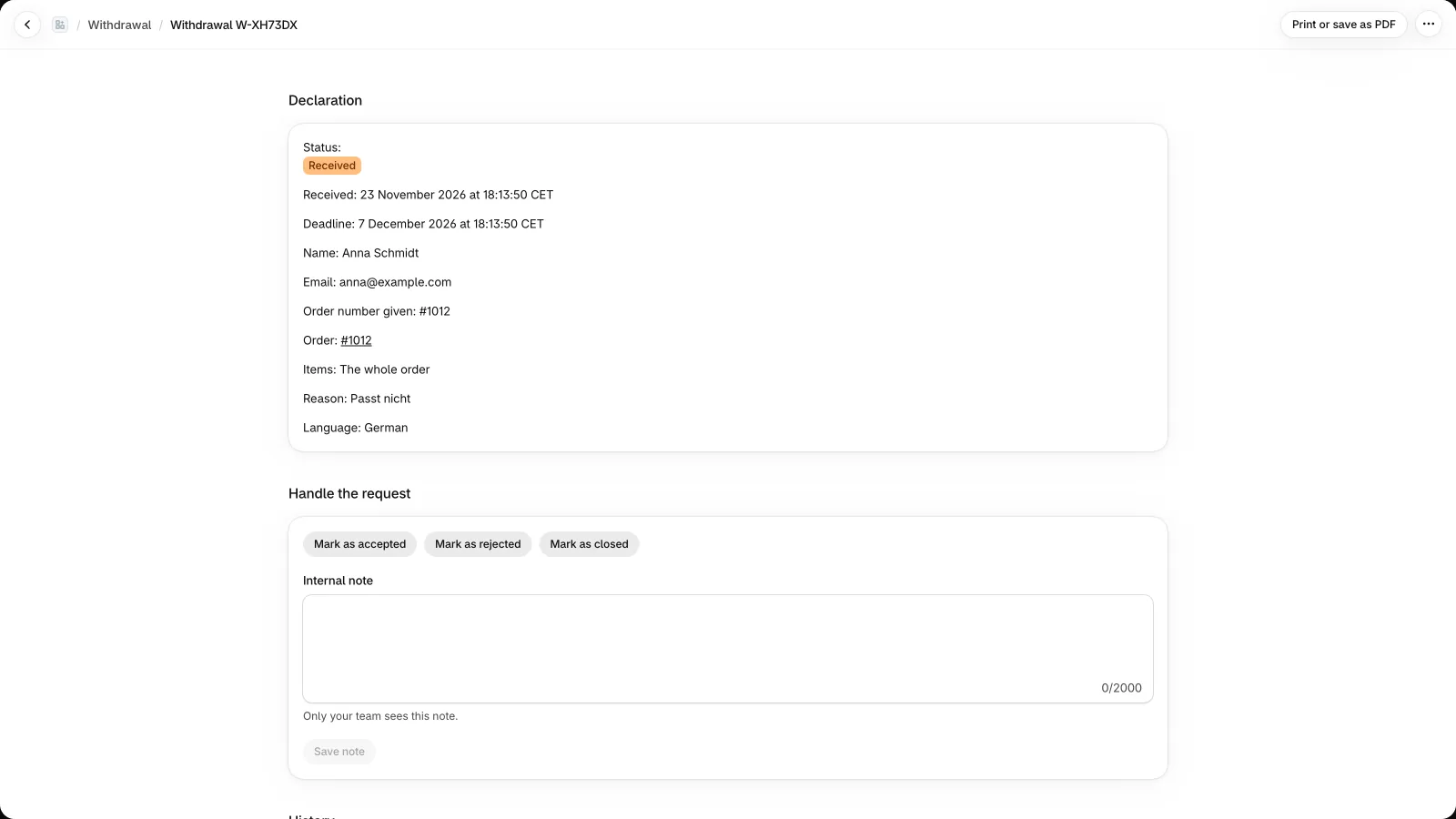
- Declaration: status, time of receipt, deadline, name, email, the order number given, the matched order (with a link to it in your admin), the items, the reason and the language. Items that carry one of your excluded product tags are listed as excluded by your rules.
- Handle the request: move the request through its statuses and keep an Internal note that only your team sees.
- History: every event, from receipt to each status change and email.
- Mails: the confirmation to the customer and the notification to your team, with their delivery status. If one failed, Send again appears here.
Statuses
| Status | Meaning |
|---|---|
| Received | New. Shown as "Waiting for you" on the Overview |
| Accepted | You accept the withdrawal and arrange the return |
| Rejected | You decided not to accept it, for example for goods excluded by law. Explain this to the customer yourself |
| Refunded | The refund is done |
| Closed | Nothing more to do |
On the order
When a request matches an order, the app adds the order tag from your settings (default withdrawal) and stores the request on the order. Filter orders by the tag or use it in Shopify Flow.
Alerts
The Overview shows alerts for requests that need attention, for example an unmatched order or an email that could not be sent. Dismiss all alerts clears them; every request stays in the log.
Export and print
- Export CSV on the request log downloads the requests, filtered by the status you chose (Standard plan and higher).
- Print or save as PDF on a request page prints the declaration and its history, for your records.
How long requests are kept
Requests are deleted automatically after the period set in Keep requests for (default 1,095 days, about three years). Keep them as long as you may need them as evidence.
Updated 2026-11-23